Understand the connections before bundling them
For each cable, record the device it powers or connects. Start at the device and follow the lead to its other end. An unlabelled power adapter that appears to belong to a lamp may actually supply the dock. Identify uncertain connections before unplugging anything. For managed workplace equipment, agree connection or power changes with the responsible team. Do not interrupt transfers or equipment that needs a particular shutdown procedure.
Distinguish permanently connected equipment from items taken away every day. A monitor usually needs a fixed route; a laptop needs an accessible connection. The plug you use most often should not disappear at the back of a tightly bound bundle. Consider likely additions and replacements too. A little spare room in a cable tray can simplify the next change, whereas a completely full arrangement may need dismantling as soon as one adapter is added.
Reproduce the workstation's movements
Move an adjustable desk through its intended working range while watching every connection. Check the low position as well as the high one: loops can reach the floor or become caught near moving parts when the desk descends. Allow the movement reserve required by the manufacturer without creating long loose loops around your legs. A cable must not act as the stop that limits desk travel. If an appropriate route cannot be established, ask the desk manufacturer about a suitable arrangement.
Then move monitor arms, lamps and any sliding keyboard support. Each can create tension elsewhere in the system. Look for sideways force on connectors, sharp edges touching cables and loops that a chair castor could catch. Repeat the exercise with the laptop in its actual working position. A lead that remains slack only when the computer is perfectly central does not suit someone who regularly moves it to the other side of the desk.
Choose supports around access and the mounting surface
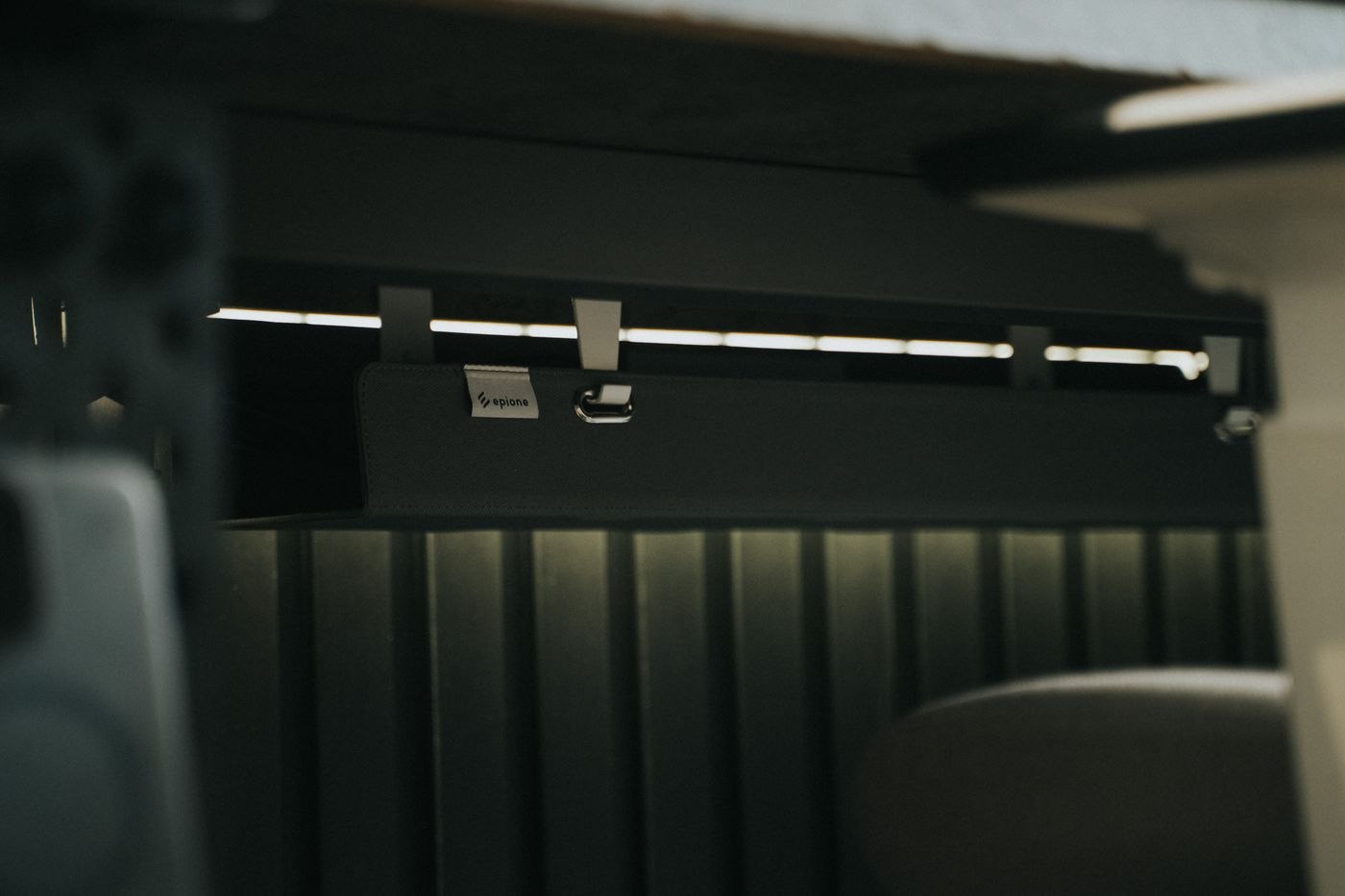
A cable basket can hold adapters but needs appropriate fixing and sufficient space. Read the requirements for desktop material, load and installation. Inspect the underside for crossbars, drawers and existing equipment before drilling. On a rented or sensitive desktop, an approved clamp arrangement may be preferable. Adhesive supports depend on surface, material and load; do not assume they can safely hold heavy adapters. The permitted installation matters more than a fastening that looks invisible in a photograph.
Keep the ventilation areas of equipment and power supplies clear. Do not enclose them in fabric bags or improvised sealed containers. Position a power strip appropriately and use it within its instructions; do not connect power strips in a chain. Missing suitable outlets or damaged components call for an appropriate professional solution. Hiding a problematic cable inside a channel does not resolve the underlying issue simply because the desk looks tidier.
Distinguish a fixed desk from a mobile kit
At a permanent workstation, monitor and network connections may remain in place. A laptop taken away daily needs an obvious disconnection point. Identify the exact connection to release on departure and leave the remaining arrangement untouched. This reduces the chance of pulling out another cable during a hurried exit.
Where several people share the desk, test the changeover with their devices. Different port locations may make a previously adequate cable length unsuitable. Provide only the variants actually needed and label them clearly. A collection of old unidentified adapters in the basket does not make the workstation more flexible; it makes selection harder. Once their purpose is established, unused leads can leave the active arrangement and be stored separately where appropriate.
Label connections and try an equipment change
Mark both ends of important leads with understandable device names. Use releasable bundling where changes are frequent and separate removable charging leads from the permanent collection. Record which device belongs to each similar-looking adapter so that a future user does not experiment with mismatched components. Keep connectors reachable without dismantling the whole basket. Someone replacing a failed display should be able to identify its cable route without tracing every other connection first.
Finish with an ordinary change: take the laptop away, reconnect it and move the chair as you normally would. Check for loosened supports or displaced loops afterwards. Review the arrangement after a few days and following any substantial equipment change. Good cable management remains understandable when it has to be opened. It is an accessible part of the workstation, rather than a permanently sealed installation that only its original organiser can interpret.