Look at the actual camera frame
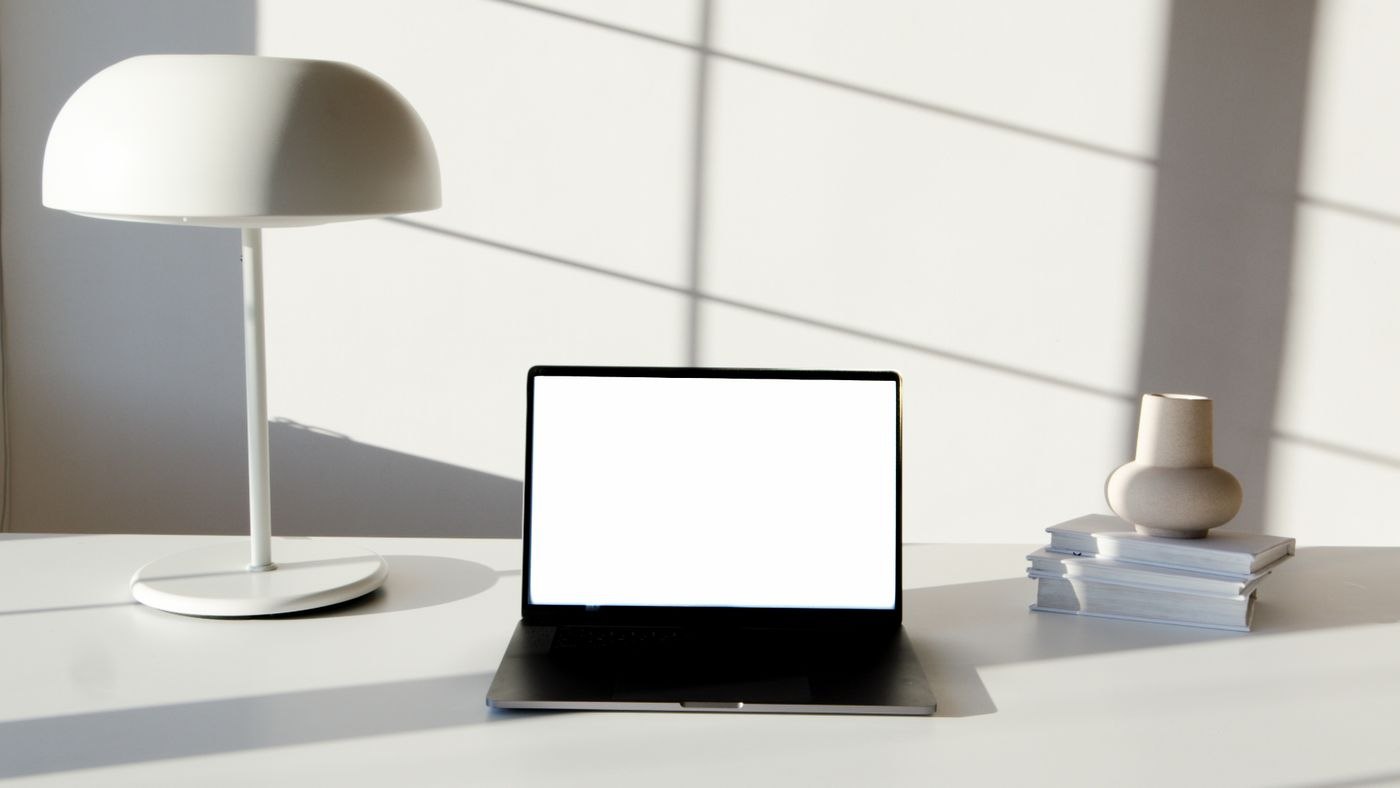
Open the preview using the camera intended for the call. Sit normally and examine every edge of the picture. Things you barely notice from your chair may be clearly visible behind you: labelled folders, a wall calendar, a private photograph or the route into another room. Remove sensitive information from view rather than assuming it is unreadable because the preview happens to be small.
Start by adjusting the camera direction in small increments. A slight change of angle may exclude a doorway or a busy section of shelving. Then check that you can still look comfortably at the display and other participants. A tidy composition is not helpful if every conversation requires sitting with your body turned sideways to the work surface.
Keep a few things deliberately
A shelf or plant can remain visible if it belongs naturally in the room. Prioritise removing objects that move, create strong reflections or look like temporarily abandoned clutter. A plain wall does not automatically need more decoration. Check any larger display in the background too: it may reveal internal material or become a bright patch that competes for attention.
If the room is shared, agree how it will be used during the conversation. A closed door or an agreed route is more reliable than hoping nobody walks into view. A portable screen may help, but it needs to stand securely without obstructing circulation or window operation. Test its proposed position in the camera frame before buying a screen solely for its advertised width.
Test virtual effects separately
If your application offers blur or a virtual background, try it while moving. Turn your head, raise a hand and hold up an object you may need to explain. Edges and objects can be rendered incompletely depending on the application, equipment and surroundings. Do not treat the effect as a guarantee that confidential details will remain hidden throughout a call.
Also check whether the desired effect remains active after restarting and with the intended camera selected. For a material demonstration, a quiet real background may work better if the software removes part of the object. Prepare an appropriate real view for that situation rather than rearranging the workspace in the middle of the conversation.
Use a short feedback session
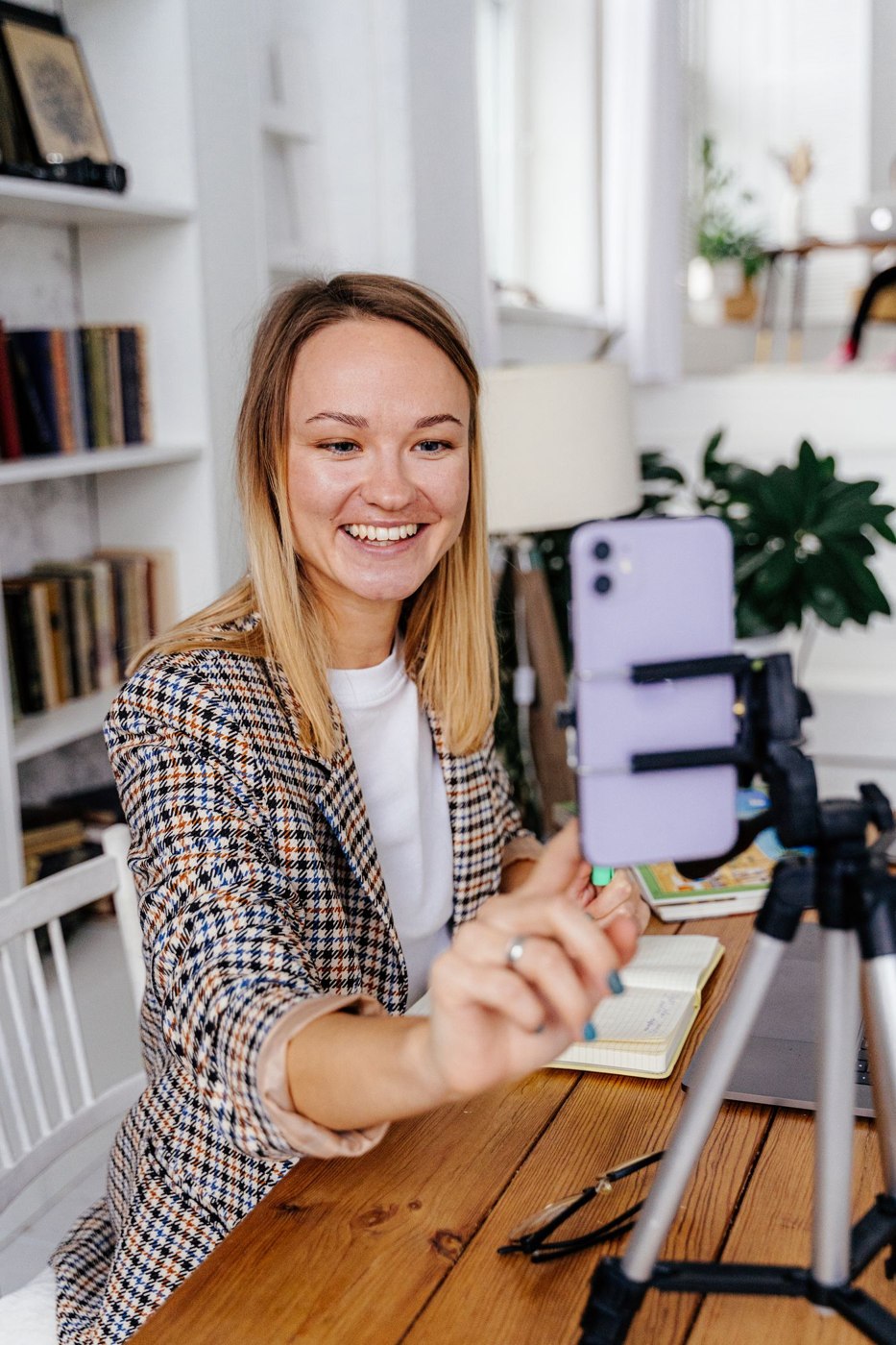
Make a test recording without confidential content, or ask someone to comment on the composition. Ask specifically whether anything distracts them or is difficult to see. Evaluate lighting, camera height and the visible working area as well as decoration. Once the arrangement works, mark the useful tripod or laptop position so that a quick check before a meeting can restore it.