Follow the signal from computer to screen
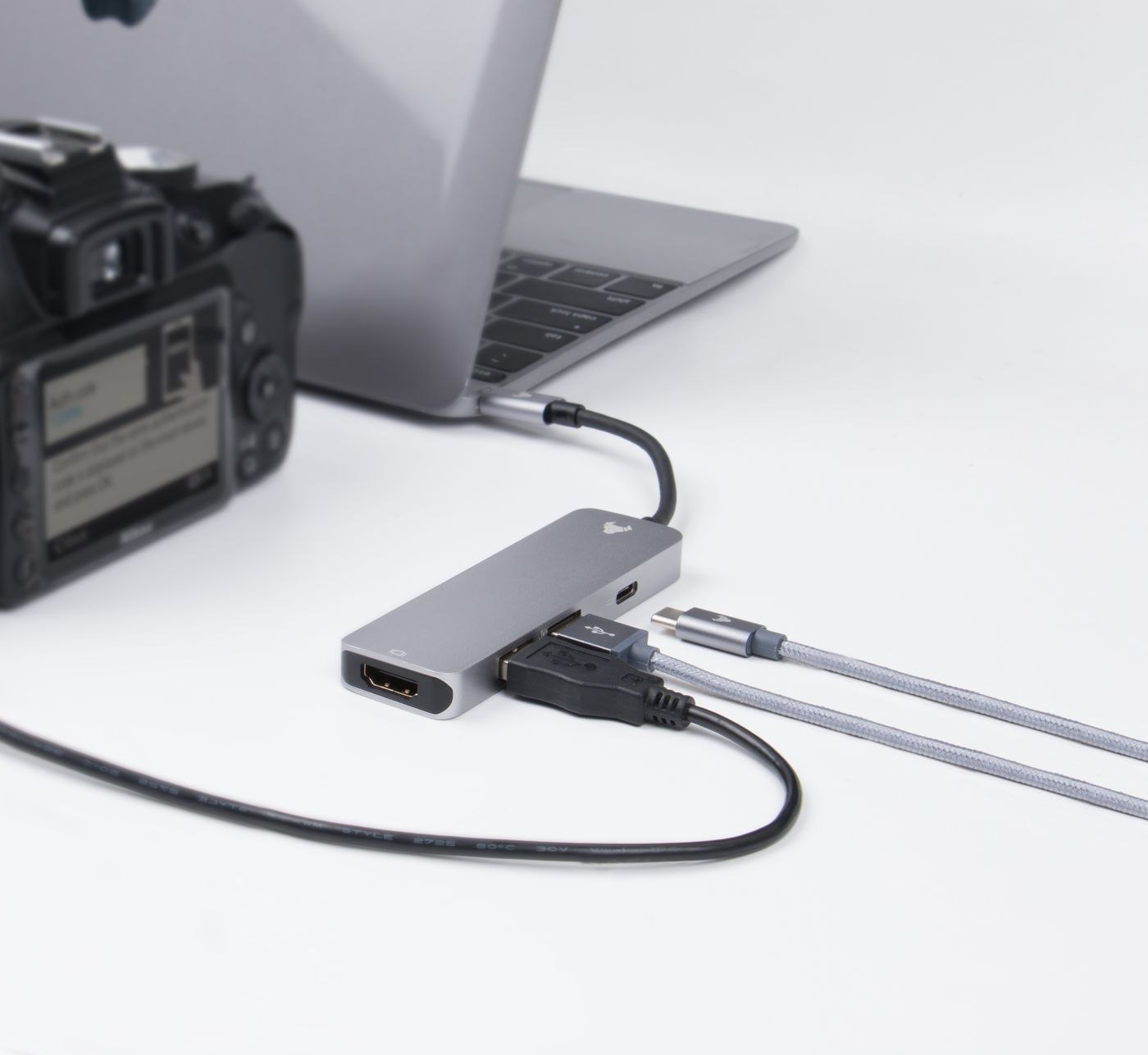
Start with the exact computer or dock model and the intended video output. At the other end, record the monitor and its input. Include every cable and adapter between them in the sketch. This reveals whether the connection is fully described or whether you are merely comparing two connector shapes.
Direction matters. An adapter intended for a DisplayPort source and an HDMI screen is not automatically suitable for an HDMI source and a DisplayPort screen. Read the stated signal direction in the specification. An additional power connection or other requirements may also depend on the converter. A colleague's similar-looking arrangement does not establish compatibility for yours.
Specify resolution and refresh rate together
Write down the display mode you actually need. A supported resolution without its associated refresh rate does not fully describe the intended connection. Check the combination across the computer, dock, adapter and monitor specifications. One capable component does not remove limitations elsewhere in the chain.
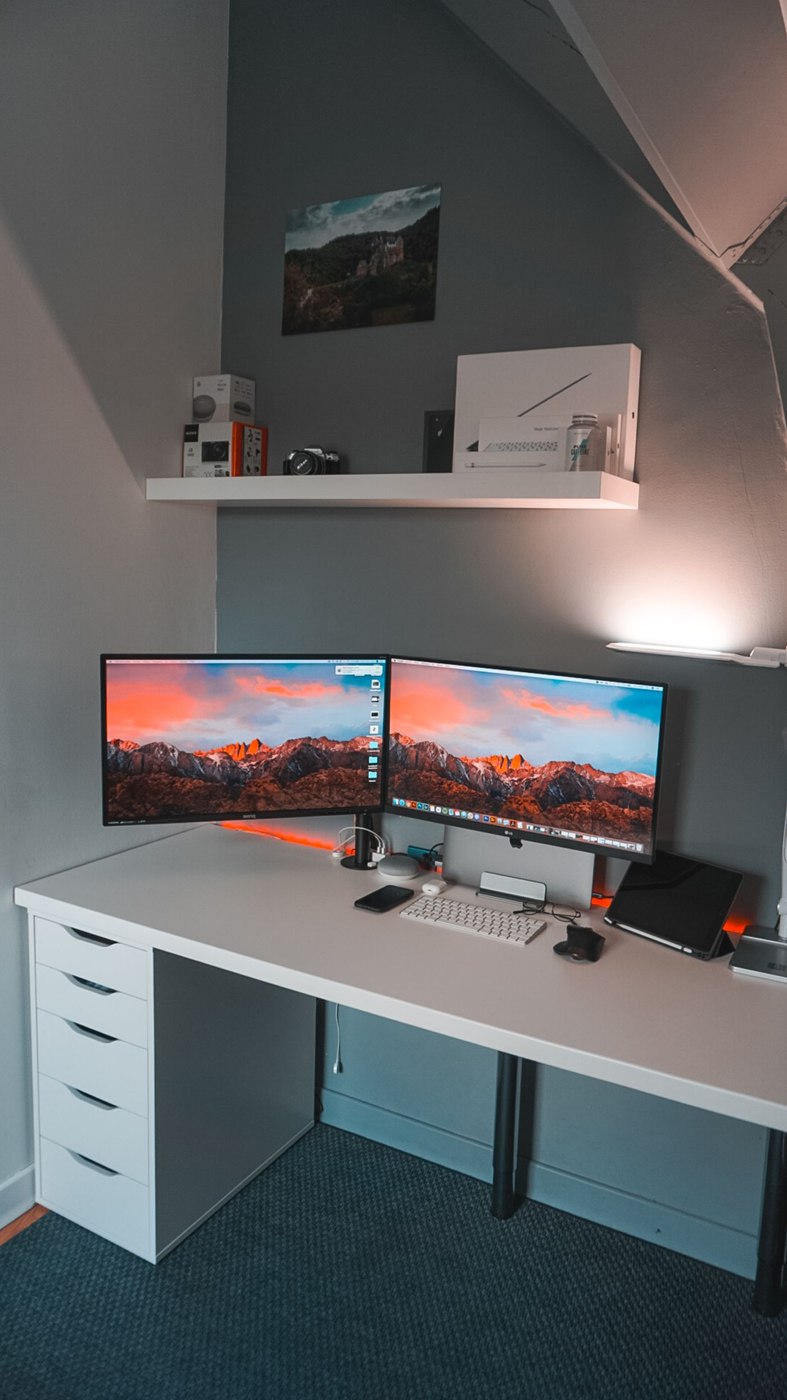
Ordinary office tasks may suit a different arrangement from an application with specialised display requirements. Avoid adopting a maximum figure from an advertisement without a purpose. If two displays will operate simultaneously, that shared configuration also needs support. A successful single-monitor test does not prove that the same chain can provide a second independent display.
Prefer an understandable connection
First look for a directly supported route using the available ports. An additional adapter may be necessary, but it should perform a clearly identified function. A chain of unidentified conversions makes troubleshooting harder. DisplayPort conversion can also require a distinction between passive and active solutions depending on the source and configuration; choose according to those actual requirements.
Consider physical handling too. A heavy adapter attached directly to a small laptop port may sit awkwardly when the computer moves regularly. Check its position, the space behind the monitor and the route across the desk. A working signal does not make a dangling, inaccessible connection convenient to use.
Test one change at a time
If no picture appears, first check the monitor's selected input and the documented connection. Where possible, compare with a known working arrangement before adding more unfamiliar components. Change one element at a time. Otherwise it becomes difficult to establish which substitution caused the result.
Record a confirmed combination using exact product references. A short note beside the equipment or in a shared equipment record can help with later replacement. It also prevents an outwardly similar adapter being reordered without checking. A successful display connection is a set of compatible components, not simply a collection of plugs that physically fit.