Start with the exact laptop configuration
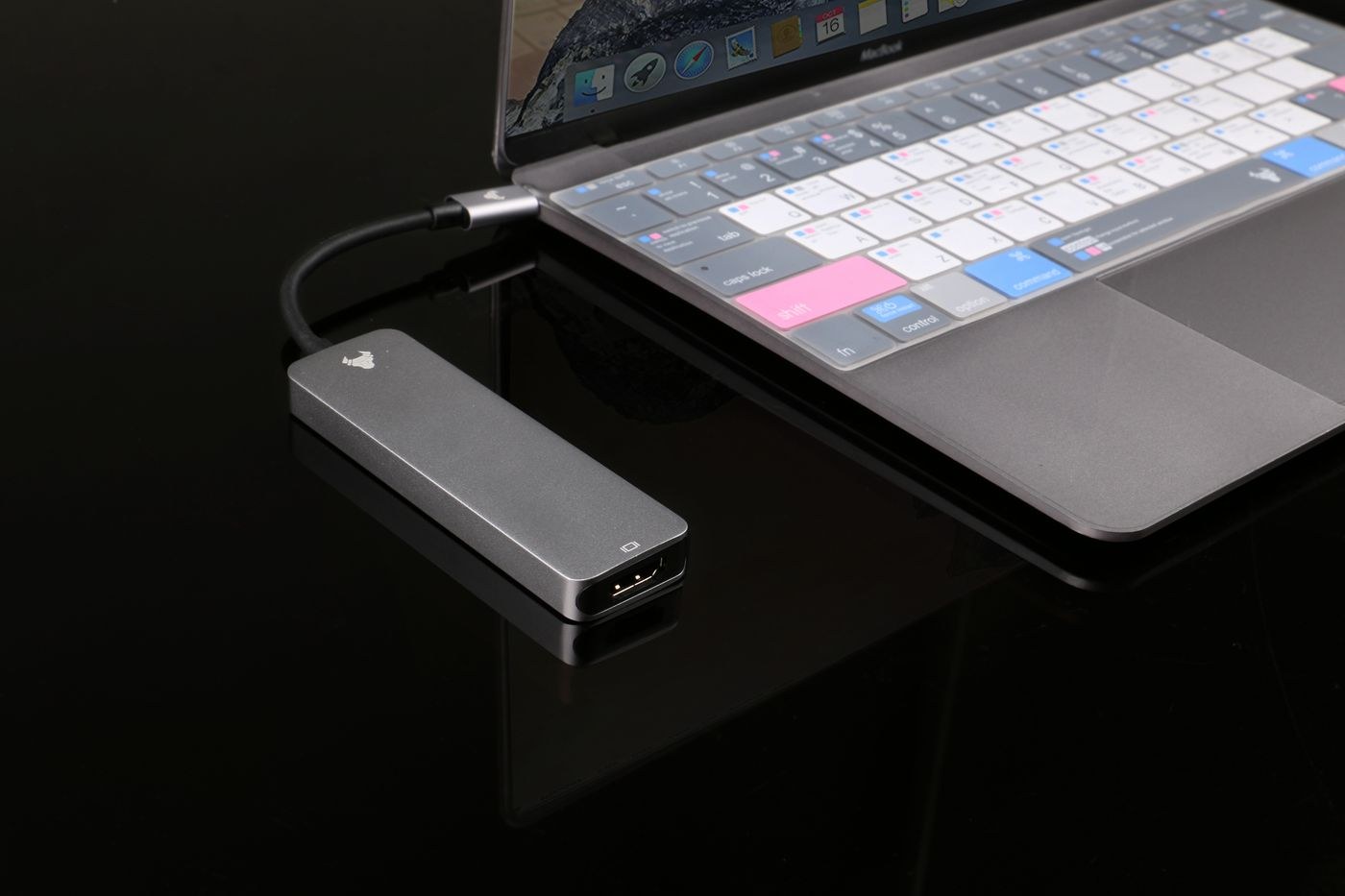
Write down the laptop's full model designation, including its particular configuration. Find the description of the port you intend to use in its own manual. The USB-C connector shape alone does not establish which display and charging functions that port supports. For a dock using native video over USB-C, the manufacturer's specified connection method must match the laptop, for example DisplayPort Alternate Mode. Check a Thunderbolt dock against its specific compatibility information too.
Place the proposed dock's specification beside these details. Highlight statements that explicitly apply to your computer or its connection type. An advertised maximum capability may depend on a particular laptop family or configuration. At a shared desk, include every computer that will regularly connect. A setup that works fully with only one of two work laptops may do little to reduce the daily effort of connecting equipment.
Describe the display combination precisely
Make a short connection list with each display's model, desired resolution, refresh rate and available input. State whether you want two monitors to show separate workspaces. Two sockets on a dock do not establish that your exact combination is supported. The relevant evidence is the specification table and any restrictions for the whole system: computer, operating system, dock and displays.
Next, draw the actual cable routes. An existing HDMI cable is of little use if another display already occupies the suitable output. Trace each route from dock to monitor and identify any required adapters. Compare the total cost of the complete connection with a dock that provides the desired outputs directly. Extra adapters are not inherently a problem, but they add steps when you need to identify a fault later.
Base the purchase on technical information for your intended combination rather than the largest resolution printed on the box. If a specification describes only one display, support for your multiple-monitor arrangement remains unresolved. Ask the manufacturer to confirm an unclear combination before ordering, and keep the answer with the exact model numbers you supplied.
Check power as a separate requirement
Record the power requirement specified by the laptop manufacturer and compare it with the power that the dock explicitly delivers to the computer. The wattage printed on the dock's power adapter is not necessarily the amount available to the laptop. Check whether that adapter is included and which connecting cable is required. Use the details for the exact model rather than drawing conclusions from a similar product name.
Decide whether a second charging cable would be acceptable. It may cause little inconvenience at a permanent desk but matter more when moving repeatedly between meetings and the workstation. Write down the real requirement: connecting one cable on arrival, or obtaining reliable peripheral connections with separate power. That distinction prevents paying for a charging feature that your laptop cannot use in this combination.
Allow room for the other equipment
List the keyboard, mouse, webcam, headset, external drives and any network cable separately. Consider plug shapes as well as socket counts: a wide wireless receiver may obstruct its neighbour. Use photographs and dimensions to establish which connections face forward and which sit at the rear. You should be able to reach a regularly inserted storage drive without pulling the entire dock out from beneath the screen.
Measure the distance between the planned dock position and the laptop port. A short attached cable can make an otherwise suitable station awkward for your desk arrangement. Check the other side of the computer too: ventilation openings, a card reader or a separate charger may still need access. Keep the proposed position clear and try a box of similar dimensions there before ordering.
Use the return period for a complete working test
For the first test, connect one display before adding the other equipment. Then reproduce your normal working day: a video meeting, file access, both displays and reconnecting after a break. Record which connection is affected if something fails. Change only one cable or device at a time so that the result remains understandable.
Manufacturer troubleshooting instructions can help isolate display cables, settings and dock connections. Use official support pages and updates intended for your model. Simply switching on successfully is not a complete test of a shared workstation. Repeat the important tasks with every intended laptop before discarding packaging or allowing the return period to expire. If a limitation remains, compare it against your original requirements rather than assuming that another adapter will resolve it.